Hallo This Topic explain how tool bar work / some tips for suggestion for new / old forum users.
I Share some stuff i learned not the best but hopefully some can help you :D
hopefully this could help the community 💗
I will go through each tool and how it could be used / polls.
Please read all rules before making a suggestion it’s very important :
Before making a suggestion make sure you follow these rules to:
1-Make sure the suggestion you making is not already suggested !
by going here :
2-If your suggestion get declined or you need help with suggestion go through this and dm a mod but if they don’t answer try to pm another mod.
Remember they also humans they have there own life stuff to and be respectful.
3-Most important rule never ever put a classified documents or you will end up in mr snail abyss / Banned please use (unclassified information only ) / public Books (read the linked rules ).
First step :
Suggestion title :
Spoiler
Suggestion title is the first part of making a suggestion !
Make sure you put the correct name of your suggestion.
Where do i type the suggestion title?

Example from own suggestion :

Extra tip from Necronomica :
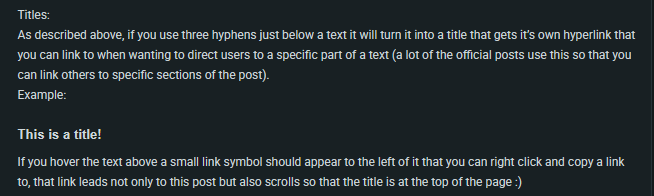
Suggestion category :
Spoiler
1-Make sure to choose the correct category of your suggestion !
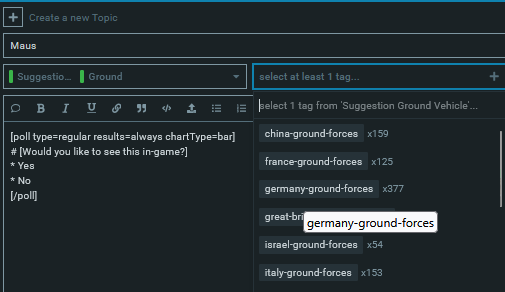
2-Make sure to choose the correct nation tag !
Example images :
if it’s a tank suggestion choose ground tag !

Maus tank it’s Germany so i choose Germany because it’s the correct nation !
Suggestion image :
It’s very important to provide a photo for your suggestion

Tool bar :

Tool Bar Keyboard binds :
Spoiler
1- Quote whole post
Keyboard bind ( Q )2-Strong
Keyboard bind ( Ctrl + b )3-Emphasis
Keyboard bind ( Ctrl + i )4-Underline text
Keyboard bind (unknown )5-Hyperlink
Keyboard bind ( Ctrl + k )6-Blockquote
Keyboard bind ( Ctrl + Shift + 9 )7-Preformatted text
Keyboard bind ( Ctrl + e )8-Upload
Keyboard bind ( none )9-Bulledted List
Keyboard bind ( Ctrl + Shift + 8 )10-Numbered List
Keyboard bind ( Ctrl + Shift + 7 )11-Insert date / time
Keyboard bind ( none )12-Add an image
Keyboard bind ( none )13-Align to the left
Keyboard bind ( none )14-Center content
Keyboard bind ( none )15-Align to the right
Keyboard bind ( none )16-Justify a test
Keyboard bind ( none )17-Color
Keyboard bind ( none )18-Change the size of your text
Keyboard bind ( none )
Tool bar explaining :
Always highlight your text with mouse before using any tools.
1-Blockquote :

Spoiler
Quote whole post is basically highlight of words you type !
How do you use ?
highlight your words with mouse and click on the words you want to Quote then click q or click the icon shown in the image !
Example image :
Before using Q
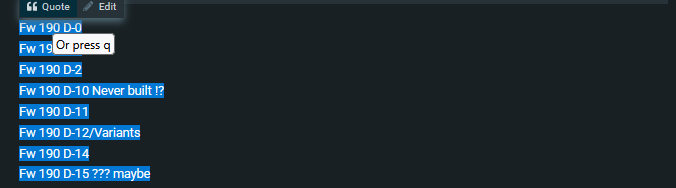
After using Q

Example text:
I used 500 SL booster send help !
2-Strong :

Spoiler
Strong will make your words highlighted with stronger color
Select your words with mouse and click on B as shown in the image or click Ctrl + B on the Keyboard
Example image :
Before using B :

After using B :
Example Text :
Attack the Q point
3-Emphasis :

Spoiler
What is Emphasis ?
Emphasis in text formatting means giving certain words or phrases extra visual weight !
Example image :
Before using Emphasis :

After using Emphasis :

Example text :
I forget to bring fuel
4-Underline text :

Spoiler
What is underline text?
it’s line under your text
Example image :
Before using underline text

After using underline text

Example text :
Wow that’s nice line ;D
5-Hyperlink :

Spoiler

as shown in image put the title for you link and the link !
Don’t put any bad links / or anything break the rules
Example hyperlink :
Dancing :D
Extra tip from Necronomica :

6-Preformatted text :

Spoiler
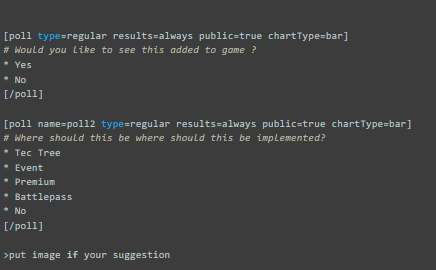
the text is displayed exactly as you type it, with fixed-width spacing and no automatic formatting applied.
it’s good if you want to copy past your suggestion !
Example image using Preformatted text :
Example text :
Hanz
Ja?
did you eat meaball?
Hanz
Nien
Skill issue
7-Upload :

Spoiler
Upload button is where you Upload Video / Gifs / Photos
Example uploaded gif using upload button :
Extra tip from Necronomica :

8-Bulledted List :

Spoiler
What is bulldted list?
Bulleted List is a way to organize text into clear points, each marked with a bullet symbol !
Example text :
- Katt
- Kattt
- Katttt
- Katttttt
- Kattttttt
9-Numbered List :

Spoiler
what is Numbered list?
Numbered list put the amount of text in organized way !
Example text :
- Fw 190 D-11
- Fw 190 D-12
- Fw 190 D-13
- Fw 190 D-14
- Fw 190 D-15
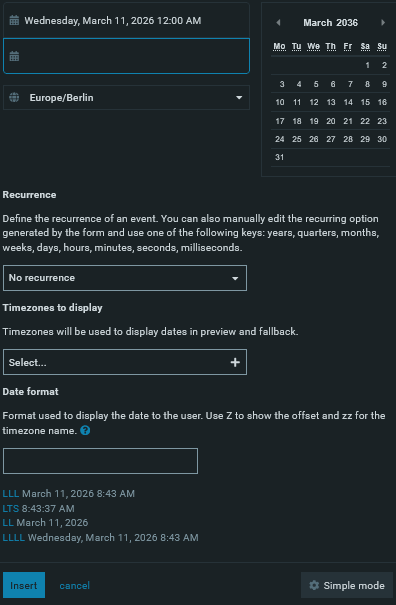
10-Insert date / time :

Spoiler
What is Insert date / time?
basically a timeline can be used for events or other stuff !
Use advance / simple mode show in image !
11-Align to the left :

Spoiler
What is Align to the left?
it moves text you put to left side !
Example image in left side :

12-Center content :

Spoiler
What is Center content ?
It moves your text to center
Example image :
13-Align to the right :

Spoiler
What is Align to the right?
it moves text you put to right side !
Example image :
14-Justify a test :

Spoiler
15-Color :

Spoiler
what is color?
Color is used to change text color scroll down for more info about it !
16-change the size of your text :

Spoiler
What is change the size of your text?
it change your Text size !
How to use?
change the number the number only as shown in the image

Example Text :
Size 10
Need Cover !
Size 5
Need Cover !
17-Polls :

Spoiler
What is polls?
it’s place where players could decide if they want something added basically voting yes or no.
polls is the most important part of a suggestion !!!
Always remember to put ( No ) in each poll when making a suggestion.
Don’t put a timeline when put a poll for a suggestion !
How to use polls ?
1-Click on this icon :
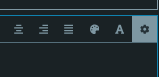
2-Click on Build a Poll
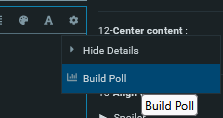
3-Click on show advance options
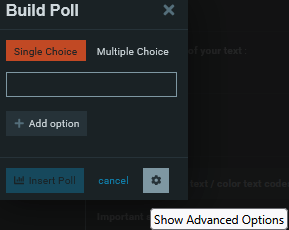
4-Put the title
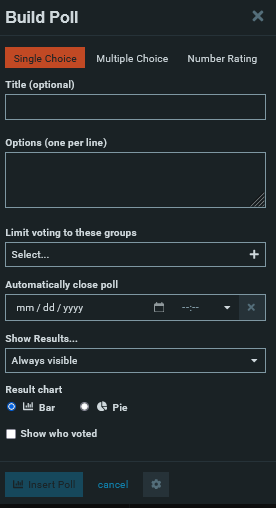
5-when put option click spaces in keyboard
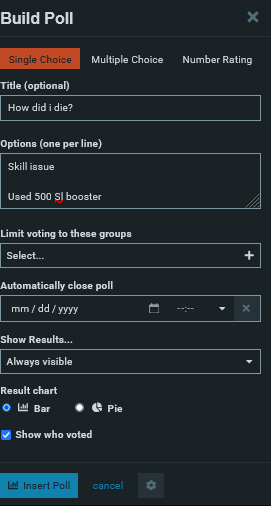
Example poll for a suggestion :
[poll name=poll3 type=regular results=always public=true chartType=bar]- Yes
- No
- Tec tree
- Event
- Premium
- Battlepass
- No
18-Photos

Spoiler
How to use photos?
Copy past a image link from online source
Example image :
Replace the link with the photo you like !

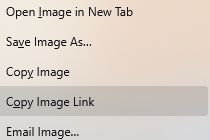
After using online photo link :

19-Add content in the left

Spoiler
How to use color text / color text codes :
Important side note !!! :
Red color is not allowed to be used it’s only for Forum mods+
How to use text colors
1-highlight your text with mouse and click on color text on the tool bar !
2- Copy past codes to the color of your choose !
3- Copy the code to the place shown in the images !!!
Example text :
Before
[color=#4ee]
replace the number + word
After changing to new color
[color=#53E]
Example image :
Before text color

After using text color

Another easy way

Thanks to Necronomica for this tip !
Color text Codes :
Spoiler
Copy only the Hex code !
| Color Name | Hex Code | Example |
|---|---|---|
| Black | #000000 |
Black |
| White | #FFFFFF |
White |
| Red | #FF0000 |
Not allowed to be used !!! |
| Green | #008000 |
Green |
| Blue | #0000FF |
Blue |
| Yellow | #FFFF00 |
Yellow |
| Cyan | #00FFFF |
Cyan |
| Magenta | #FF00FF |
Magenta |
| Orange | #FFA500 |
Orange |
| Purple | #800080 |
Purple |
| Pink | #FFC0CB |
Pink |
| Brown | #A52A2A |
Brown |
| Gray | #808080 |
Gray |
| Light Gray | #D3D3D3 |
Light Gray |
| Navy | #000080 |
Navy |
| Teal | #008080 |
Teal |
| Olive | #808000 |
Olive |
| Gold | #FFD700 |
Gold |
| Silver | #C0C0C0 |
Silver |
How to use Lines?
Spoiler
Copy past this :
Remove ( * ) before posting
*______________________________
Example images :
Before using line :

After using line :
Extra tip from Necronomica :

Cool Red line image for suggestion i stole :
Spoiler
How to use ?
1-click on the image and download it
2-uploaded to your suggestion by click on upload button

How to place?
1- highlight it with mouse
use one of the three options you like / place of it.

Example image :
Red line in center


Red line in left :

Red line right:

Ready Text to use to save your time !
Delete ``` to use it
Remember to delete old text and replace them with your text.
That’s just basic text add as much information to your suggestion !
Spoiler
[poll type=regular results=always public=true chartType=bar]
# Would you like to see this added to game ?
* Yes
* No
[/poll]

[poll name=poll2 type=regular results=always public=true chartType=bar]
# Where should this be where should this be implemented?
* Tec Tree
* Event
* Premium
* Battlepass
* No
[/poll]

>put image if your suggestion


History and Development :

[details="Spoiler"]
Put History and Development here


[/details]


> IRL images:

[details="Spoiler"]
put the tank / plane / naval image here


[/details]

> Specifications
> General Characteristics

[details="Spoiler"]

put Specifications General Characteristics here


[/details]

> **Sources :**

[details="Spoiler"]

put Sources here


[/details]

Thanks for reading !
How to Edit image / gifs size ?
Spoiler
Click on the number shown in image
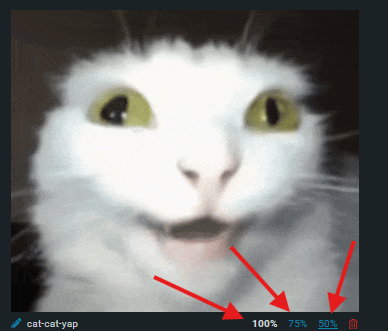

You can edit the number !!!

Thanks for reading !