I reset MPO to its default settings.
I disabled G-Sync, turned off V-Sync in-game, and set the frame rate to 5 FPS below my monitor’s refresh rate, which prevents screen tearing.
I haven’t had any freezes for the past 2–3 days, but about a week ago they were occurring. It might be related to some additional changes I made in the NVIDIA App.
I tried this combination a year ago, but it ended up freezing.
And now I’ve tried the same combination again, and it froze.
Yesterday, I updated the graphics drivers using a clean installation. I then restored my previous configuration for War Thunder (G-Sync disabled, V-Sync disabled, FPS limited to 160, I have 165Hz monitor). Today, the game froze again, although the freeze occurred after an extended play session.
Windows Event Viewer
- System

  - Provider

   [ Name]  Application Hang
   [ Guid]  {c631c3dc-c676-59e4-2db3-5c0af00f9675}

   EventID 1002

   Version 0

   Level 2

   Task 101

   Opcode 0

   Keywords 0x8000000000000000

  - TimeCreated

   [ SystemTime]  2026-03-28T22:11:02.9006409Z

   EventRecordID 57212

   Correlation

  - Execution

   [ ProcessID]  21676
   [ ThreadID]  9716

   Channel Application

   Computer DESKTOP-PS3EMGC

  - Security

   [ UserID]  S-1-5-18


- EventData

  AppName aces.exe
  AppVersion 2.55.0.40
  ProcessId 0xd0c
  StartTime 0x1dcbed80c2b72f0
  TerminationTime 4294967295
  ExeFileName D:\WarThunder\win64\aces.exe
  ReportId 3739c246-3040-49db-bb81-f84b29650cb6
  PackageFullName
  PackageRelativeAppId
  HangType Top level window is idle
1 Like
+REP alt tab crashing is annoying
1 Like
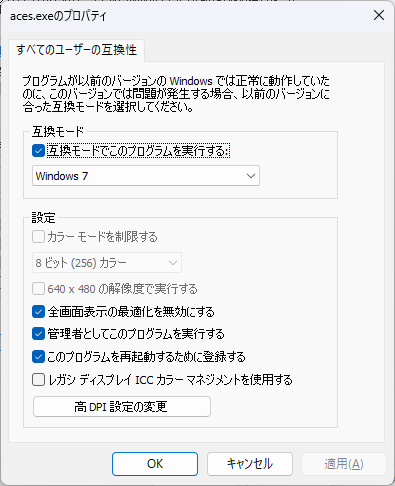
Try to open the game first, then right-click and go to Properties.
it feel sooo good that Im free from this suffers. I haven’t faced this problem ever since.
Windowed screen works like a charm for me
Unfortunately, it still freezes even when I set the compatibility mode to Windows 7
1 Like
I noticed that for me War Thunder would only hard freeze when I alt tabbed between my browser and the game. And even then usually only if the currently focused browser tab was playing a Youtube video or something similar. (I am using Firefox as my browser, and I am on Windows 11.)
Anyways, disabling hardware accelerated graphics in my web browser settings has seemingly fixed the issue.
EDIT: I just noticed how old this topic is. This issue only started happening for me around a week ago give or take. Not sure if it was a game update or a graphics driver update that caused it.
1 Like
Is the cache file for this game working properly?
After deleting it and reopening the game to play just one match, a cache file of 632MB has been generated.
After opening the game, try switching the API to DirectX 11 and turning off the Discord overlay. I kept toggling these settings on and off, and sometimes it fixed the issue, sometimes it didn’t. I’m not completely sure what the exact cause is, but when I went back to my system settings (like optimized Windows 7 settings, etc.), it seemed to help fix it.
two year old issue still in the game, absolutely ridiculous
2 Likes
I still get this all the time. U alt tab back and the game freezes/ sound loops.
G-SYNC on / off does nothing
1440p - 4k does nothing
fps cap - does nothing
background fps cap - does nothing
dlss off = does nothing
dx12 is buggy so useless alternative and dx11 freezes on alt tab
fullscreen optimizations off = nothing
it’s 100% a game engine problem how it interact with MPO or windows.
2 Likes
A measure that helped somewhat.
I set the idle FPS for background apps to the maximum of 200 FPS in the Nvidia Control Panel.
It doesn’t completely prevent the game from freezing, but it has improved things slightly.
As leaks from the original development team suggest, GAIJIN’s current development environment is an absolute disaster, so there’s probably no one capable of fixing this bug.
1 Like
It’s crazy how there are 1000’s of posts on their issue tracker about this and they just give the most basic reply about nothing
People have started reporting it in Enlisted and Aces of Thunder, 2 spin off games. It’s a dagor engine issue with windows for sure.
1 Like
same issue, but cachyOS so not a windows issue, although same bug happened to my windows installation also
1 Like
does cachyOS have MPO equivalant?
Have no idea if alt tabbing makes my problem but freezing every 10 seconds
DDU remove amd/intel/nvidia full clean install on june driver - does nothing
sound mod off - does nothing.
this is 100% gaijin end.
3 Likes
I suspect that the game is responsible, but it’s difficult to prove because the game’s error detection mechanism doesn’t detect the issue. The only evidence is an error report generated by Windows.
3 Likes
Yes. The bug wasn’t happening 1-2 years ago, it happened after a major update (i don’t know which one), but I remember noticing it a long time ago. I’ve been playing for a few years on consistant OS, this is not Window, this is not driver related, not Nvidia/AMD/Intel related, there is something in the spaghetti-code that needs to be fixed but noone knows what it is.
The bug does not happen if you alt tab in an app that is not in fullscreen mode. There is something with the game not being able to resume the simulation when you ALT-TAB back into ace.exe (war thunder).
For me, it always happen when I alt-tab to discord in “fullscreen” mode, so I always reduce discord’s window size a little bit. It seems that any fullscreen window causes the game to stop, and the moment it has to resume (alt-tabbing back in) it has to load everything back (textures, 3D models, data) and freezes.