Hello Pilots, Tankers… and Sailors!
I originally posted this as a brief PSA on the WT Live (here), with no clear steps or explanation so figured it’s useful enough to port over here and flesh out for more people to see as my first ever topic-post.
my attempt to get this to the subreddit wasn’t received very amicably to say the least. I actually sorted it out, it’s back up on reddit.
- Introduction
If you’re the type to have 50+ GB or however much worth of “cool epic historic 8k quality” War Thunder Userskins on Windows, or anything else of the like… ehem, you can compress your skin folder using a very clever and simple method and shrink it down to around 8-12GB or less with no noticeable impact on performance at all! This humble post aims to explain what it is and how to use it briefly as well as what returns it has in its savings.

- What is this? What does it do!? Explain yourself!
This is the same compression system Windows uses for system files and game installs on devices like the Steam Deck (NTFS/LZX), just applied manually to skins. The files get uncompressed on the fly whenever the game actually needs them to be loaded unlike how they’d normally just be sitting there taking up full space all the time. Since compact.exe (the thing this method uses) compression is handled natively by Windows, there’s no jankiness or big delay from it decompressing the files, and honestly you wouldn’t notice one anyway since you’re only ever loading one skin at a time every match as explained further down.
As for MacOS, I’m not sure if there are similar alternatives for compressing skins… there probably are with APFS, but I’m only pointing out the one I’m confident enough and know of myself to share here. 
However, if you use Linux, @themadseventeen has made a complimentary guide you can check out here!
FAQs and How-To:
A: Yes, it does work with other files and even other games with varying degrees of success depending on the file types that it’s being used to compress and the algorithm you choose.
A: You can usually add (by just dropping them in the folder just like so) and remove skins and not mess up the compression at all since it’s done individually on each file, but the new skins you add won’t be compressed automatically. For that I recommend re-compressing it every time it gets a couple GB bigger, say, 10 GB for the best savings ratio.
A: Results vary depending on the skin format; DDS compresses extremely well which is why this method works effectively and it’s also the most common format for most skins on WTLive, however PNGs usually don’t get touched like those on old-SDK skins. Expect anywhere from 50% to 80% space savings per skin.
Example:
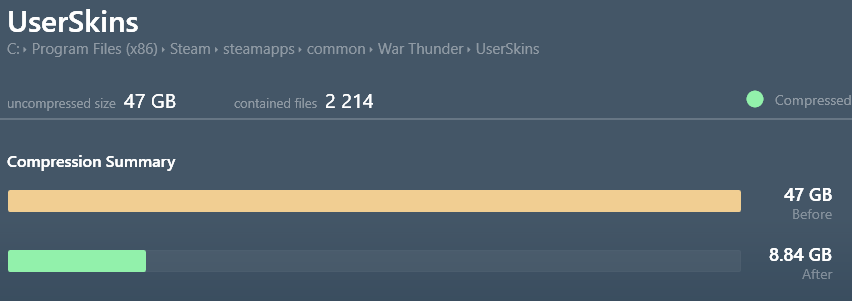
Here we can see up to a 81% saving on filesize through X16 compression!
A: As said in the main text there is no noticeable impact. Windows decompresses the files on‑the‑fly only when needed (e.g., when your vehicle loads into a match). Since skins are client-side you’re only loading one skin at a time; yours, so the overhead is negligible.
Note: There is technically a tiny microscopic CPU cost to decompression, but because skins are small and only accessed when loading your vehicle, it’s effectively unnoticeable on any CPU that isn’t running on fumes.
A: This uses Windows’ built-in NTFS filesystem compression, not a 3rd party background app, so the OS handles decompression transparently as part of normal file reads.
A: You can confirm it worked by right-clicking the folder → Properties. “Size on disk” should now be much smaller than “Size.”
A: The main “trick” of this optimization method that keeps it away from just simply compressing all of the game files is updates rewriting data and compressing/uncompressing large individual files on game load. Thankfully the UserSkins folder is only ever modified by the player itself and only loaded one skin at a time so the amount of cycles is minimal and your disk won’t get burnt out reading and writing constantly seven quintillion times the entire 150gbs worth of skins you may have in your folder as each one of them is at most a couple megabytes each and in DDS format.
A: I wouldn’t recommend doing it on the games files since they get updated every now and then and they’re already compressed for the most part. If you were to compress them the gains would be negligible and your disk would constantly be rewriting stuff that it doesn’t need to that much on game load.
- Where do I get started!? (HOW-TO)
There a a few ways to use Compact.exe, but for brevity I will point out these two:
- If you want to just click 2-3 buttons and watch the folder get squeezed down to a pettable size, CompactGUI is probably the simplest and most middle-of-the-road solution, you can check out the GitHub for it clicking here, it’s plug-and-play and very intuitive in its usage so no installs. It’s also the one I personally use myself.
- If you want to look L33T whilst compressing your skins or want to just use Windows’ command line to tweak parameters to your own liking, you can check out the official Microsoft page on Compact.exe’s usage clicking here.
After you’ve gotten any of the two, compress ONLY the UserSkins folder in War Thunders root directory which is usually …/WarThunder/UserSkins with whichever compression algorithm you’ve chosen, i.e X16.
For both methods X16 is the most preferable and versatile compression setting compared to X8 and LZX.
All of that said… Thank you very much for reading and special thanks to @TheElite96 for giving me the thumbs up to post this and pointing me in the right direction with lightning-fast attention! 
Fly Safe, Aim Well and Good Landings!
PS: Please let me know if the tags should be edited or if this should be posted somewhere else, I will try to answer to any questions I can. Thanks!
Also check my wishlist, wink wink